Screen recording for AI agents: record it, mark it, hand it off, see it shipped
Your agent cannot watch a video. It can read one, if the video arrives as words, marks and images with timestamps. Here are the two ways to record it, the one line that connects your agent, and the whole loop to a shipped fix.
By Darek Markiewicz · · 14 min read
You found the bug. A screen recording for AI agents gets it to your coding agent faster than three paragraphs about which button, on which card, after which click. Show it instead: thirty seconds of screen recording, your voice, a circle around the thing that is wrong. Showing is faster for you. The question is whether your agent can use it.
A raw video file is no use to an AI agent today. Agents read text and images. So good video for AI agents is a recording that arrives as text and images: what you said, with timestamps, what you drew, with the second you drew it, and a picture of each thing you circled. That is what Vidmatic is built for, and the product page for screen recording for AI coding agents shows the whole hand-off on film. Choosing between recorders? The six questions further down work on any of them, and Vidmatic vs Clipy vs Cap compares three side by side.
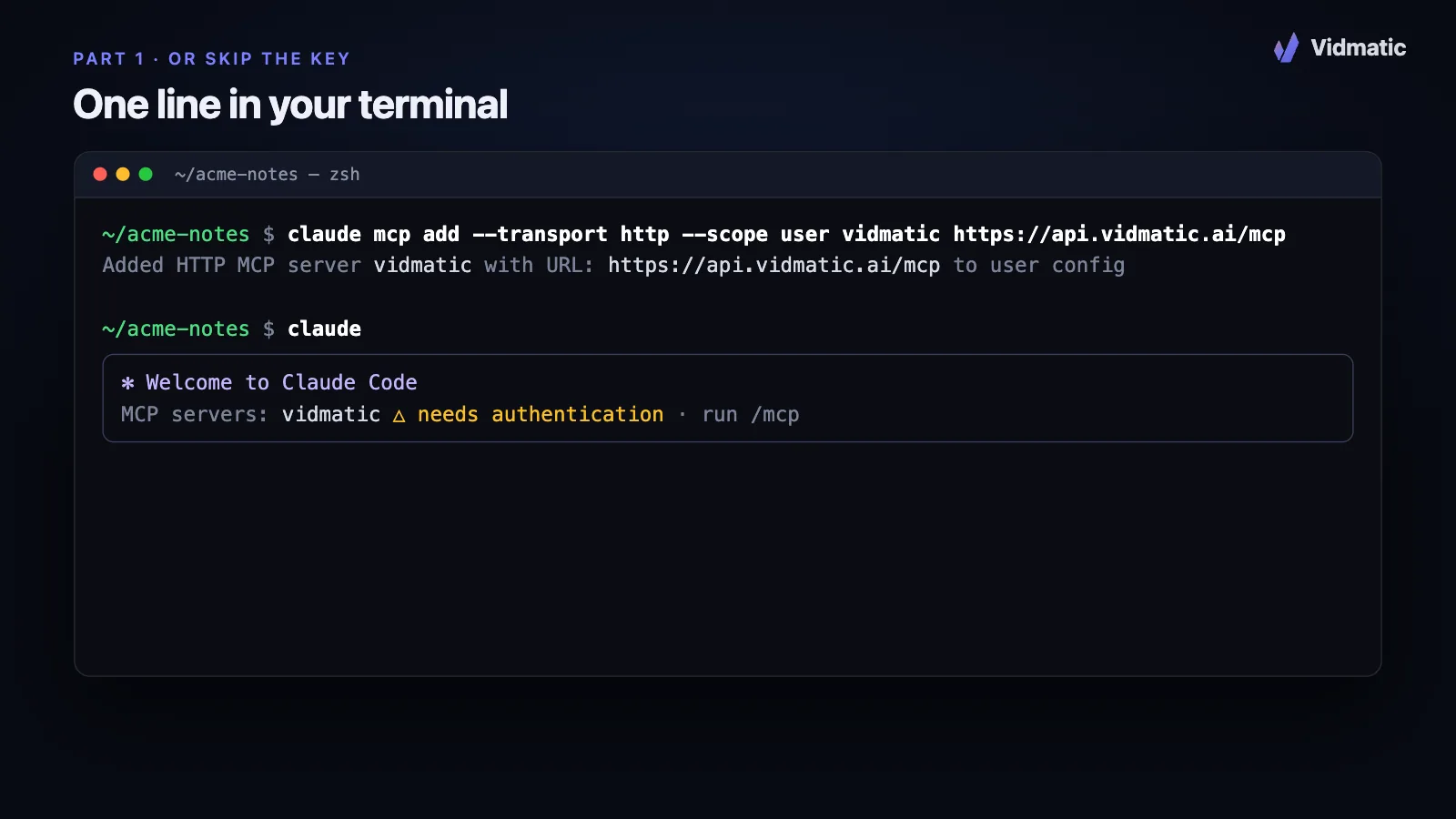 Setup is one line. The film at the top of this page shows the whole hand-off.
The film at the top of this page shows the path in about a minute and a half: one line to connect your agent, one line to hand it a recording, and the list of asks it sends back. Further down, one real change is followed through every step, from the recording to the merged fix and the video that proves it.
What an AI agent can read from a video
Three things in a recording carry the meaning. Lose one and your agent starts guessing.
- What you said, in order. "The upgrade button on the middle card says Submit."
- What you pointed at. "This one" means nothing without a position.
- When it happened. A flicker at 0:07 is evidence. A total that changes after the second click is evidence.
Every serious recorder handles the first one: transcription is cheap now. The differences are in the second and third. Some tools keep click coordinates. Some pick frames they think matter. Vidmatic keeps the marks you drew yourself, and serves all three to your agent over MCP. Your agent calls one tool and gets:
- A timed transcript, every line with its start time.
- Every mark you drew: a circle, a cross, an arrow, a tick or handwriting, each with the moment you confirmed it and the sentence you were saying at the time.
- An image of the screen with each mark on it, so the agent looks at the exact button you circled instead of guessing from your words.
When your words and your drawing disagree, the drawing wins. People misspeak while they point; the mark is the precise part. The docs page what your agent receives lists every field, and what your agent does while a transcript is still processing.
Two ways to screen record for AI agents: with and without the Chrome extension
You can record for your agent two ways. Both end in the same place: a recording your agent can read.
Workflow A: the Chrome extension (record, mark it up, talk)
Install the Vidmatic Chrome extension and press record on the page that has the problem. Talk as you go. When you reach the problem, pick up the pen and draw on the page: circle the wrong button, cross out the wrong price, arrow to where the label should be. Each mark is captured as an image at the moment you confirm it.
 Circle it while you say it. The mark and the sentence arrive together.
This gives the agent the most to work with: your voice says what is wrong, and your marks say where.
Workflow B: no extension, record from the app
No extension, or the problem is not in a browser tab? Open Vidmatic and press New Recording. It records any screen or window you pick, with your microphone, straight from the browser. When you stop, it can open a GitHub issue for you (once GitHub is connected) with a link to the recording and the full transcript, using the labels and assignees you chose.
There is no pen in this mode, so your voice carries the asks. Say the element out loud ("the third row, the Status column") and pause on it; the agent gets your words with their timestamps and frames from the recording.
Which one should you use?
| Chrome extension | New Recording (no extension) | |
|---|---|---|
| Install | One-time extension | Nothing |
| What it records | Browser tab, window or screen | Any screen or window |
| Pen marks on screen | Yes, each sent as an image | No, say it out loud |
| Voice and timed transcript | Yes | Yes |
| Opens a GitHub issue for you | Yes, when you stop (optional) | Yes, when you stop (optional) |
| Best for | UI bugs where position matters | Quick reports, desktop apps, anyone without the extension |
Use the extension when the bug lives in where something is. Use New Recording when the bug lives in what happens, or when you just want to get it recorded now.
Connect your coding agent in one line
Your agent reads recordings through the Vidmatic MCP server. You add it once. In Claude Code, run:
claude mcp add --transport http --scope user vidmatic https://api.vidmatic.ai/mcp
Then run /mcp, choose vidmatic and choose Authenticate. Your browser opens a Vidmatic sign-in page, you approve it, and the tools appear in the same session with no restart. There is no key to copy. If you prefer a key, go to Settings, Developer and press Build my command: you get the same command with your key added as a header, ready to paste. Restart Claude Code once so it picks the key up.
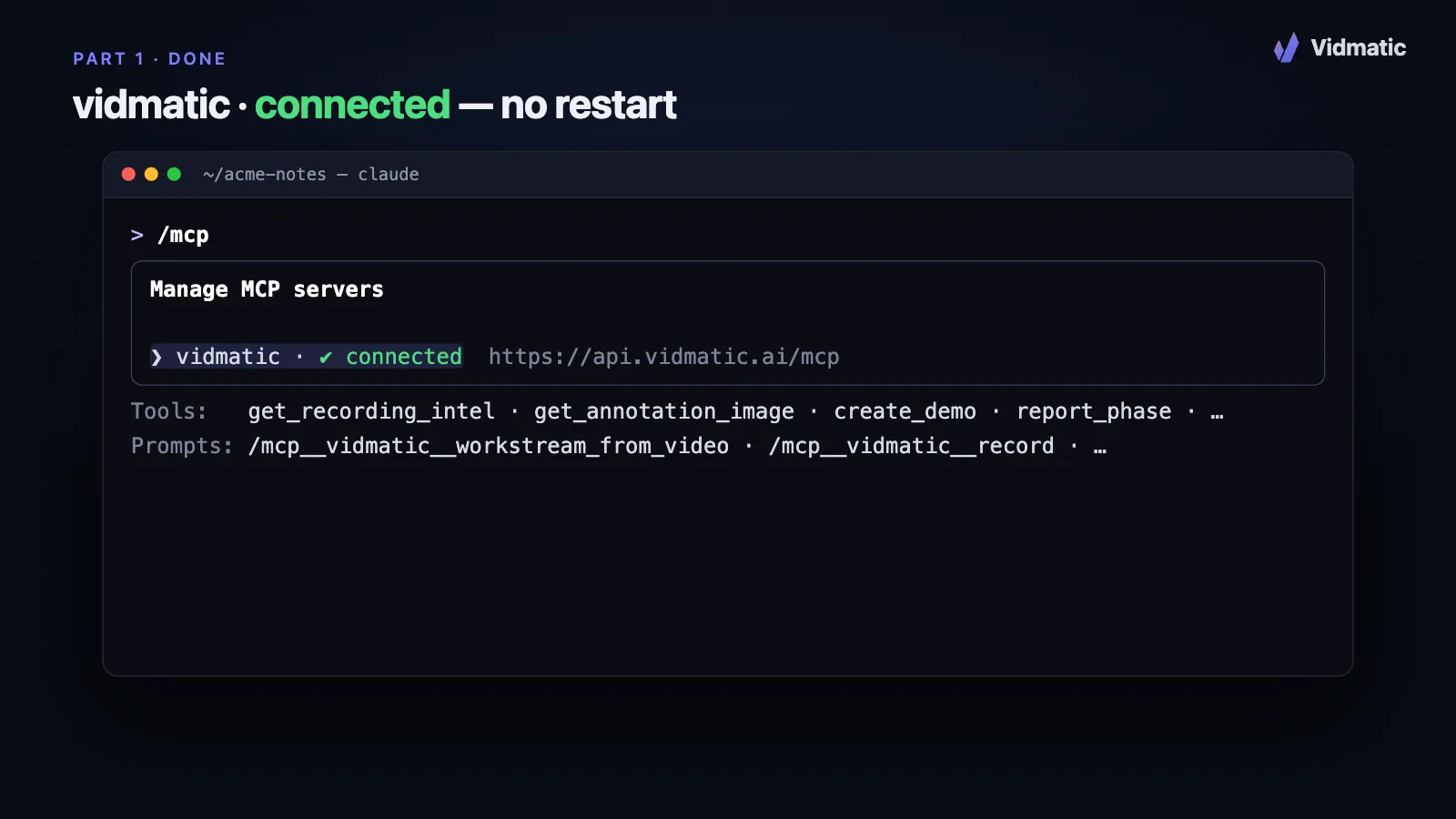 After Authenticate, /mcp lists vidmatic as connected.
In Claude Code every Vidmatic workflow is a slash command; in Cursor the agent calls get_skill with the workflow name and follows the same steps.
Hand off: one line from the recording to your agent
Every recording has a Give this to your agent panel. Press Copy prompt and paste it into your agent:
/mcp__vidmatic__workstream_from_video <recording id>
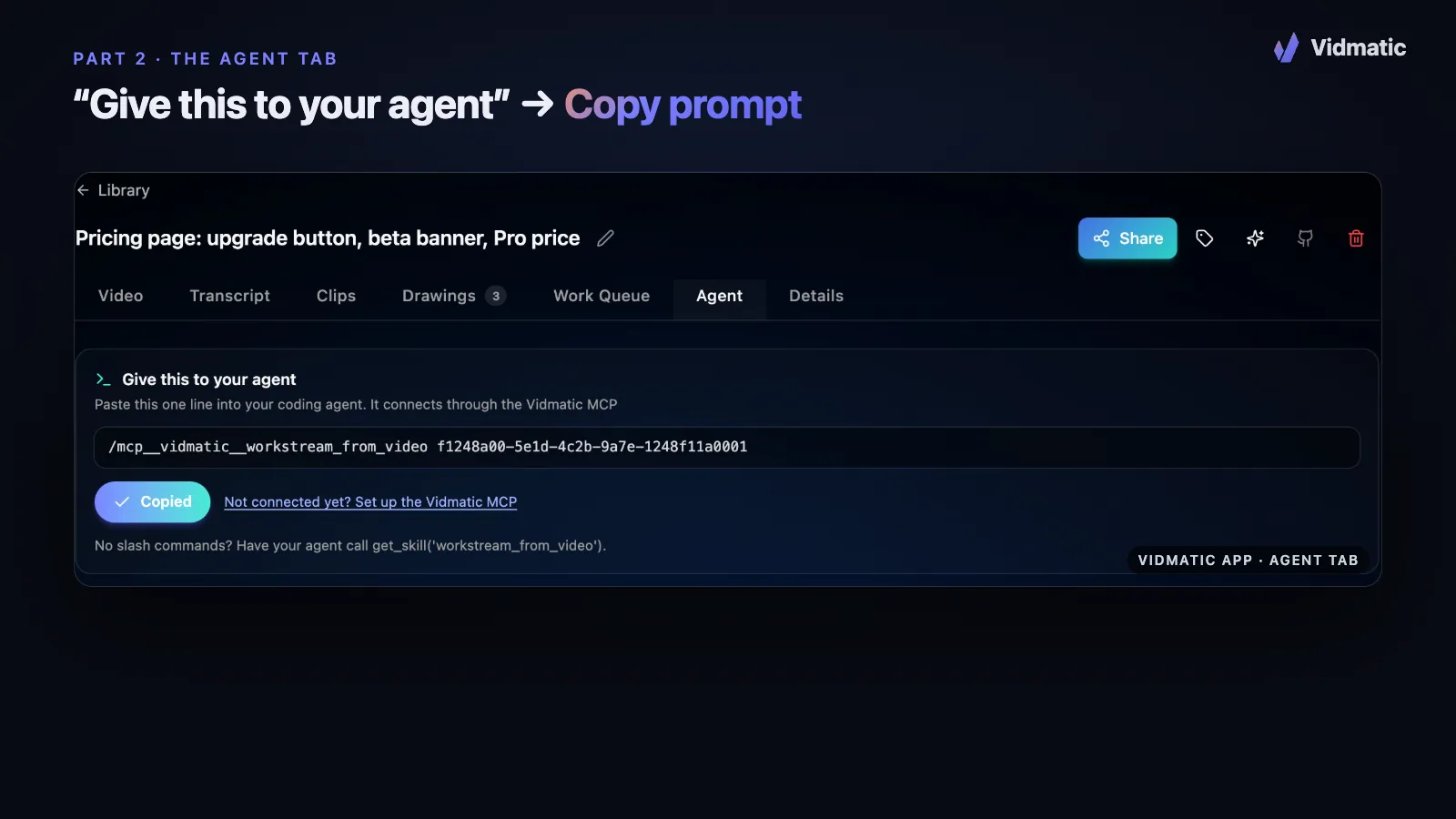 One button copies the prompt, with an instruction to follow your repo's own rules.
What happens next runs on your machine, in your repository:
- The agent waits for the transcript if the recording is fresh.
- It reads the timed transcript, every mark and the image of each mark.
- It searches your code for each thing you asked for.
- It files one GitHub issue with everything in it, and starts the work.
 The agent reads words, marks and images, then finds where each ask lands in your code.
Issue intelligence, straight to your coding agent
The part that saves the most time is not the transcript. It is the list. Your agent turns the recording into issue intelligence: one row per ask, each with the moment you said it, the mark you drew with it, and the file and line where it lands.
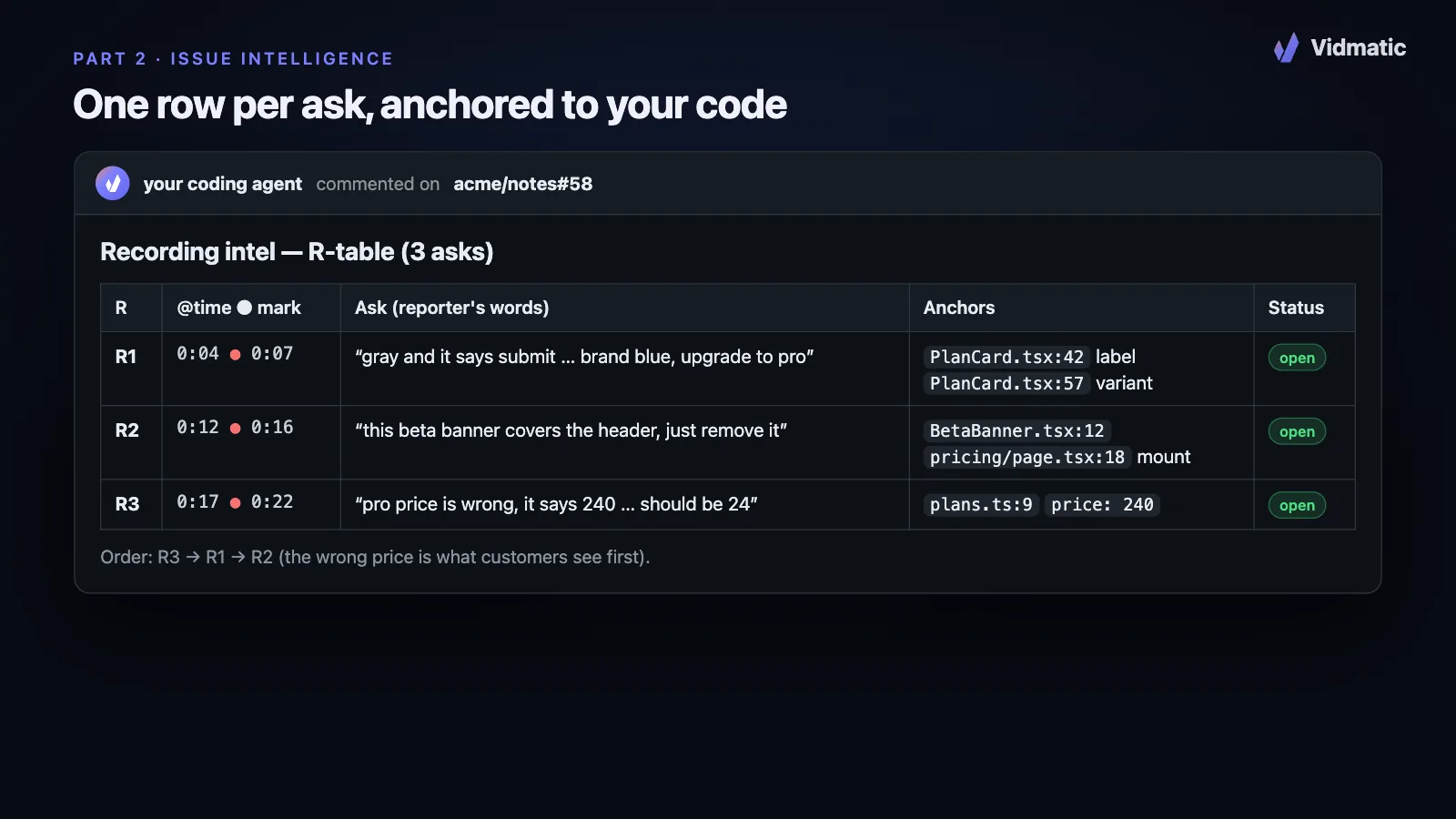 An example comment. Every ask in the reporter's own words, pinned to a moment, a mark and a line of code.
Already filed an issue from a recording? Run /mcp__vidmatic__issue_intel <issue URL> and the agent posts that table as one comment on the existing issue, so the asks a written ticket quietly dropped come back. If the agent cannot find where an ask lands, it says so instead of inventing an anchor.
The whole loop on one real change, in six steps
Here is the full loop on one change: a demo pricing page with three bugs, recorded, specced, fixed, proven and merged in ten minutes. The film of this run plays on the screen recording for AI coding agents page, and every still below is cut from it.
| Step | What you do | What you get |
|---|---|---|
| 1. Circle it | Record your app with the Chrome extension, draw on it, talk | A video with your marks and your voice |
| 2. Every mark, timed | Nothing | Every word and every mark pinned to the second |
| 3. Hand it off | Paste one line into your agent | A spec written against your code, filed as one issue |
| 4. Watch it work | Watch, if you want | Every stage of the agent's work, live, with its reasons |
| 5. Prove it | Ask for it in one line | Before and after video of the fix |
| 6. Ship it | Merge | The proof in your Inbox, next to the pull request |
Step 1: circle it
The developer in this run, call him Sam, opened the pricing page, recorded with the extension and circled a grey Pro button ("this upgrade button is gray and it says Submit, it should be our brand blue and say Upgrade to Pro"), crossed out a leftover beta banner ("just remove it"), and struck through a wrong price and wrote $24 next to it. Twenty-seven seconds, three marks, one voice, no ticket template. If you only want a narrated bug report for a teammate, the same recording does that too: see bug reports from video.
Step 2: every word and mark, pinned to the second
When the upload finishes, Vidmatic transcribes the voice into timed lines and stores each drawing with the second you started it and the second you confirmed it. On the recording page the captions follow along word by word, and the Drawings tab keeps every mark.
 0:04 the words, 0:05 the circle. The mark carries the sentence that was spoken while it was drawn.
Step 3: your agent writes the spec with your code open
This is the step Vidmatic deliberately does not do alone. Vidmatic has the video. Your agent has the code. Only your agent can say where each ask lands. In this run it read the recording, searched the repository and filed one issue with this table:
| R# | When and mark | The ask, in Sam's words | Anchors |
|---|---|---|---|
| R1 | 0:04, circle at 0:05 | "it says submit… say upgrade to pro" | src/app.js:10, src/styles.css:28 |
| R2 | 0:12, cross at 0:13 | "just remove it" | index.html:10, src/styles.css:7 |
| R3 | 0:17, $24 at 0:19 | "it should be 24" | src/plans.js:14 |
 A replay of the real session's text. The circled button lands on src/app.js:10.
One recording always becomes one issue. Complexity goes into the issue body, not into a pile of tickets. For this step on its own, read how to turn a screen recording into a GitHub issue.
Step 4: watch it work on Agent Workstreams
Most tools stop once the agent has the context. The part that hurts in practice is what happens next, when you hand work off and cannot see it. On Agent Workstreams your agent reports each stage as it finishes. Each issue is a card with a box per stage; in this run that was plan, the before video, build, review, the after video and ship. When a stage fans out, like two reviewers checking the diff, each reviewer appears as its own card under that stage.
 The real run, four minutes, sped up. Each box appeared when the agent reported that stage.
Two notes. Your agent reports and Vidmatic draws: the record is what the agent wrote, not something Vidmatic observed on its own. And reporting is additive: if a report fails, the agent keeps working and says so in one line. To see at a glance which agents are working and which one is stuck on a question, read Get your own drumming agents.
Step 5: before and after video as proof of work
"Done" is a claim. A video is evidence. By default the loop ends with one narrated demo of the finished work. For proof, add one line to your prompt and the agent runs /mcp__vidmatic__before_after: before touching the code it records the bug as it looks today against your running app, and after the fix it records the same path again. Vidmatic pairs the two halves per requirement, so they play back to back with one click, narrated.
 Same page, same path, same circle. Red before, green after.
What it needs: Node and a headless browser on the agent's machine, an app it can reach (a local dev server is fine), and the "before" filmed before the fix lands. An app behind a sign-in needs a signed-in session captured once by a person at a machine with a display. Nothing is installed in your repository and nothing runs ffmpeg on your machine. For a narrated demo of finished work on its own, see generate a demo video.
Step 6: ship it and keep the receipt
The pull request merges and the agent reports the ship. The workstream flips to shipped with the pull request link, the recording's Agent tab ticks its last box, and the proof lands in your Inbox, linked back to the issue it answers.
 Recorded 11:33 PM, shipped 11:43 PM. Ten minutes, nothing lost in the handoff.
You showed it once, and you got back a spec, a live view of the work, a merged pull request and a video that proves it.
Six questions to ask any screen recorder for AI agents
Use these on Vidmatic, on Clipy, or on anything else that turns up in your search.
- Does it keep what I pointed at, and as what? Click positions, frames picked by a model and marks you drew are three different things. Only the last one records your intent.
- Can my agent read a private recording? Public links are easy. Real bugs often live in internal tools.
- Does the free plan last? A seven-day trial is fine for evaluating a tool. It is a problem if you want your whole team recording bugs for months.
- Does the agent write the spec against my code? A summary of a video can't tell the agent which file to open. Your agent already has your repository, so the recording should give it the asks and let it find where each one lands.
- Can I see what the agent is doing after I hand off? Agents say "done" when they are not, and you usually find out an hour later.
- Do I get proof the fix works? A video of the same path before and after the change settles it faster than reading a diff.
Vidmatic's answers: every mark you draw is kept as data with its time, its sentence and an image; your agent signs in as you, so private recordings work; the Free plan keeps 25 videos with no end date; the issue is written on your machine with file and line anchors; Agent Workstreams shows each stage; and before and after video comes back on request. Plans and limits are on the pricing page.
Which coding agents it works with
Claude Code and the Cursor desktop app, verified end to end, through the hosted server at https://api.vidmatic.ai/mcp. Sign-in is OAuth in the browser and returns to your own machine, with no key needed. Another agent that connects to a remote MCP server over HTTP and signs in the same way may work too, but we list only what we have checked. The screen recording MCP server page lists every tool and skill.
How Vidmatic compares
Recording for AI agents is a busy category in 2026. Clipy, Cap, ThinkRun and others hand a recording to your agent, and they do that well. Three things set Vidmatic apart:
- Marks with timestamps and images. Your circles reach the agent as pictures, pinned to the sentence you said while you drew them.
- A recording without an extension, for any screen or window, from the New Recording button in the app.
- What comes after reading. Issue intelligence with code anchors, live work tracking, and before and after video when the fix ships.
Other tools win elsewhere: Clipy and Jam capture console errors and failed network requests, and Cap is open source. For a side-by-side with dates and sources, see Vidmatic vs Clipy vs Cap. For the other ways to get a video into Claude Code, see Can Claude Code read a video?
Start with one recording
- Connect your agent:
claude mcp add --transport http --scope user vidmatic https://api.vidmatic.ai/mcp. - Record the next bug you find, with the extension or with New Recording.
- Press Copy prompt and paste it into your agent.
The first recording is the slowest. After that, showing your agent the problem takes less time than describing it. The quickstart has every step on one page.
Further reading: working alongside AI agents
Two short essays on Medium by Darek, who builds Vidmatic.
Push back on AI Zombie Work to engage in deep, long-horizon thinking. Automating the work does not free your attention if you still review, approve and confirm every step. This essay calls that leftover zombie work, and walks through a workflow that keeps time for deep thinking: a long walk with notes, a spec that critiques itself, then letting the agent run.
We're All Starting to Sound Like ChatGPT. The stock phrases that give away model-written text, why they cost a reader's trust, and the prompt line that keeps them out. It ends with a list of the worst offenders and a quick test: delete the phrase and see if the sentence still works.
Frequently asked questions
- What is screen recording for AI agents?
- It is a screen recording made so an AI agent can act on it, not just a person. Instead of a video file, the agent receives what was said with timestamps, each mark drawn on the screen with the second it was drawn, and an image of each mark. With that it can find the code and write the fix.
- Can an AI agent understand a video?
- Not as raw video pixels yet. Agents read text and images, so a video for AI agents has to arrive as both: a timed transcript plus images of the moments that matter. Vidmatic makes those on its servers and serves them over MCP, so the agent reads the recording without any video tools on your machine.
- What should screen recordings for AI agents include?
- Three things: what you said with timestamps, what you pointed at, and when things happened. A transcript alone loses the pointing. Vidmatic keeps every mark you drew with the second you drew it, the sentence you were saying and an image of the screen with the mark on it.
- Do I need the Chrome extension?
- No. The New Recording button inside the Vidmatic app records any screen or window with your microphone, and can open a GitHub issue for you when you stop. The Chrome extension adds a pen, so you can circle, cross out and arrow things on the page while you talk, and each mark reaches your agent as an image.
- How do I add the Vidmatic MCP to Claude Code?
- Run one line in your terminal, claude mcp add --transport http --scope user vidmatic https://api.vidmatic.ai/mcp, then run /mcp, choose vidmatic and choose Authenticate to sign in in the browser. If you prefer an API key, Settings, Developer, Build my command gives you the same line with your key already in it.
- What is issue intelligence?
- It is the list of everything a recording asks for, written by your agent with your code open. Each ask gets its own row with the moment it was said, the mark drawn with it, and the file and line where it lands. The agent posts it as one comment on the issue, so nothing you said gets lost between the video and the pull request.
- Is a screen recording for AI agents private?
- Recordings are private to your account until you share them. Your agent signs in as you to read them, and your source code never goes to Vidmatic: the agent reads your repository locally and sends back only what it writes on purpose, such as the issue text, stage summaries and the demo videos it records of your running app.
- How can I check that an AI agent's fix actually works?
- Ask your agent for a before and after: it records the bug before the fix and the same path after it, against your running app. Vidmatic pairs the two halves per requirement, and they land in your Inbox and on the workstream next to the pull request.
Full video transcript
This is screen recording for AI agents, with Vidmatic. Your coding agent can't watch a video, but it can read one: a timed transcript, timed marks, and pictures of what you circled. Record two ways. The Chrome extension lets you draw and talk. The New Recording button needs no extension; your voice carries the asks. Setting up takes one line. In Settings, under Developer, one click builds the command, with your key already inside. Prefer no key? Paste this one line instead, and Claude Code adds Vidmatic, waiting for you to sign in. Open the M C P menu, choose Authenticate, and sign in once in your browser. That's it. Vidmatic shows connected, and its tools are ready in this same session, with no restart. Now the hand-off. This recording of a pricing page has three marks: a circled button, a crossed-out banner, a wrong price. On the recording's Agent tab, Give this to your agent holds a single line. Click Copy prompt. Paste it into Claude Code. The agent reads every spoken line with its time, and each mark lined up with what you said. Then it opens each mark as an image, sees exactly what you circled, and searches your code for the words on screen. And it writes back issue intelligence: one row per ask, in your words, with the time, the mark, and the file and line. Record it, paste one line, and your agent knows exactly what you asked for.
Try it on your next bug
Record the problem, hand it to your coding agent, and get a narrated demo of the fix.
Related posts
- How to give Cursor video context: hand Cursor a screen recording over MCP (2026)
Cursor reads text and images, not video. Connect one MCP server and your Cursor agent reads your recording as a timed transcript plus a picture of everything you circled.
- Best screen recorder for AI coding agents in 2026: 9 tools compared
Nine recorders, one question: when you hand the recording to your coding agent, what does it actually get? Each answer comes from the vendor's own page, with the date we read it.
- Vidmatic vs Clipy vs Cap: which recorder can your coding agent read? (2026)
Three recorders, three bets. Cap is open source and lets your agent drive the recorder. Clipy turns a recording into a structured brief. Vidmatic keeps what you pointed at and closes the loop to a shipped fix.
- Can Claude Code read a video? 4 ways to give Claude Code a video (2026)
You recorded the bug. Your agent reads text and images, not video. Here are the four ways to close that gap today, what each one keeps, and what each one quietly throws away.
Related use case
- Screen Recording for AI Coding Agents
Screen recording for AI coding agents: record your screen, circle it and say it. Claude Code or Cursor reads the transcript, marks and frames over MCP.